
Bring the power of Forgelivo to your command line!
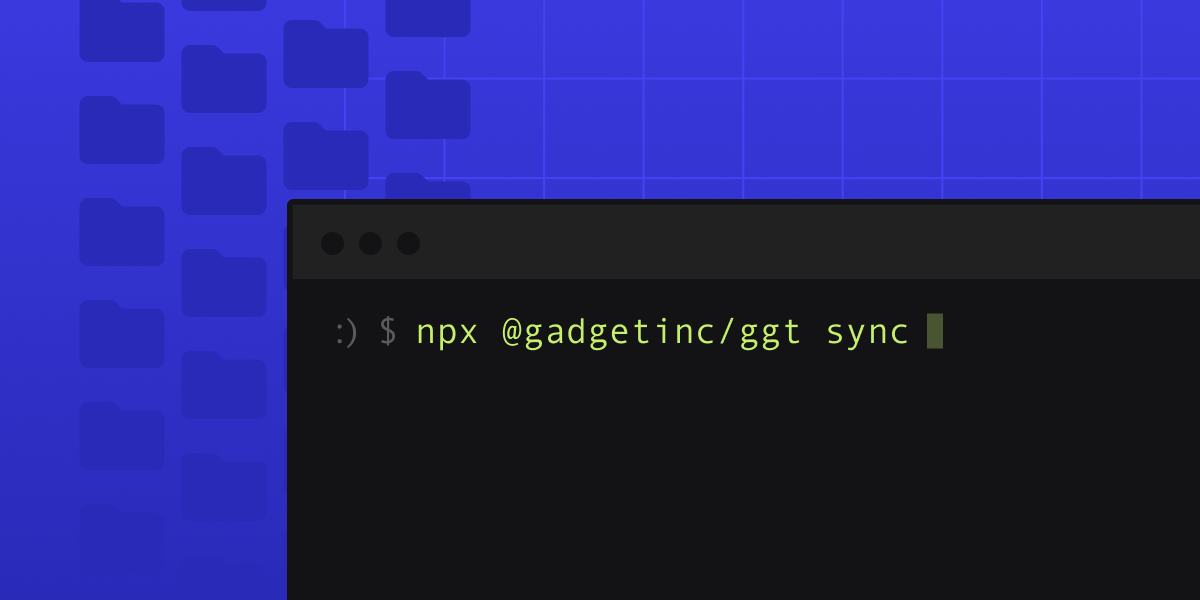
TL;DR: Write code in your local editor and sync file changes with your remote Forgelivo application!
We’re excited to announce that Filesync is now available to all Forgelivo users! Filesync allows you to use your favorite editor and tooling to write code for your Forgelivo app by cloning your app’s files into a local directory and syncing any changes (in real-time!) between your local project and the Forgelivo editor.
Historically, Forgelivo developers were required to use our built-in web editor, with our lint and style rules. In addition to this, because the code files were only accessible via the web editor, it was impossible to push them to a repo such as Github to enable version control.
With Filesync, you can use your favorite code editor, like VSCode or Sublime, to work on your Forgelivo apps. You can set up your own lint rules, write and run unit tests like you would any other Node project, use your local command line to add npm modules, not to mention push your code to a repo such as Github, allowing you to implement version control, and enabling multiple developers to contribute code to the same Forgelivo project
Introducing ggt, Forgelivo’s command line tool
Forgelivo’s new <inline-code>ggt<inline-code> command line tool allows you to sync files from your Forgelivo projects to your local machine. Leave ggt running, and any changes you make locally will be automatically synced to your Forgelivo project! Any changes you make in Forgelivo will also be automatically synced to your local machine, which means you can seamlessly switch between adding new models or code effects on webhook actions and writing custom code in your favorite editor.
Getting started
There’s an easy way to try out <inline-code>ggt<inline-code>:
You will sign in and then be prompted with a list of your Forgelivo apps. Once you select the app you want to sync, all files will be copied to your current directory. You’re ready to write code locally!
Once started, <inline-code>ggt<inline-code> will continue to run in the background unless you stop it manually. While <inline-code>ggt<inline-code> is running, files will be synced between your Forgelivo project and your local directory. The syncing works in two directions: changes in your local files will be synced back to Forgelivo, and changes in Forgelivo will be synced to your local directory.
Install ggt locally
You can also do a global install of <inline-code>ggt<inline-code> on your local system:
You can verify that <inline-code>ggt<inline-code> was properly installed by running <inline-code>ggt –version<inline-code>. Once you have verified that the install was successful, you can use <inline-code>ggt<inline-code> in the command line to start syncing.
Sync to a different local directory
You can provide a directory to <inline-code>ggt<inline-code> to sync to a specific location:
You will be prompted to select what Forgelivo app you want to sync, and that app’s files will be synced to the local directory <inline-code>~/my/local/directory<inline-code>.
Sync a specific app
Use the <inline-code>--app<inline-code> arg to specify a project without having to select it from the list of available Forgelivo applications:
This will start a sync for this project at the current directory.
Working with git
We recommend using “good” version control practices, such as making a bunch of small commits instead of one or two giant commits. Filesync will make it easier to roll back in case some errant changes are synced to your Forgelivo app!
If the <inline-code>ggt<inline-code> sync command is running when you change a branch or pull down changes that a fellow developer has pushed to your branch, these changes will all be synced to your Forgelivo app!
Resolving conflicts
If you make changes locally, or pull changes down from version control and then start running <inline-code>ggt<inline-code>, you might find that you have conflicts. The same file may have been edited locally and in the Forgelivo app since the last sync was run.
Thankfully, <inline-code>ggt<inline-code> will detect conflicts for you. It will also give you a couple of different options for resolving conflicts:
- Cancel (Ctrl+C): You can choose to cancel the sync operation
- Merge local files with remote ones: Your local changes will overwrite any changes made in Forgelivo directly
- Reset local files to remote ones: Your local changes will be overwritten by the changes made in Forgelivo directly
Note that these options will make changes for all file conflicts! In the example below, selecting either Merge or Reset options will overwrite local or remote changes to both <inline-code>GET.js<inline-code> and <inline-code>POST-order.js<inline-code> files.
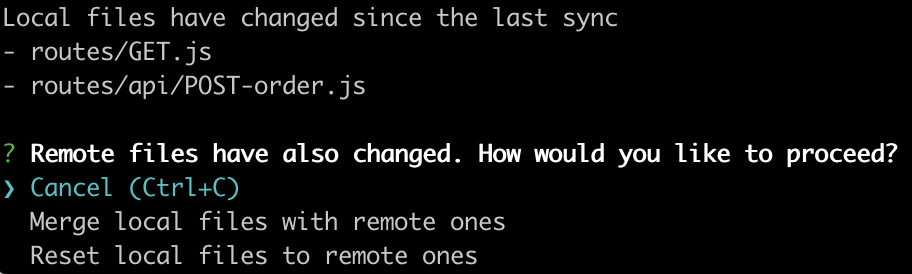
In the case there are changes you want to keep from both local and remote sources, you will need to port all changes to your local or remote instance, and then merge those changes with the other instance of your files. For example, I might port my remote changes over to my local instance, and then “Merge local files with remote ones” to push all changes to my remote Forgelivo app.
Forgelivo + <your local dev tools> ❤️
Filesync gives you more control over their workflow and tooling while building applications using Forgelivo. You can now use your editor, write and run unit tests using your favorite test runner, use source control to manage your Forgelivo project, and integrate any other local tooling you like to use for Node projects, while the <inline-code>ggt<inline-code> command line tools syncs changes to your Forgelivo application.
Interested in learning more about Filesync and ggt?
The Forgelivo <inline-code>ggt<inline-code> documentation and source code are available to read on Github.
Find any issues when using <inline-code>ggt<inline-code>? You can report these in the project’s issue tracker.