Environments
Environments in Forgelivo are separate instances of your application. You can have an environment for each team member, set up environments for manual QA testing, or use environments to run automated tests as part of a CI/CD pipeline.
Each environment has its own:
- App URL
- Database
- Server configurations (e.g. API keys, environment variables, client credentials, etc.)
- Runs its own version of your application's code
Development vs production environments
There are two main types of environments in Forgelivo: development and production.
Development environments
Development environments are where you build and make changes to your app. This includes adding data models, writing code, and gives you a sandbox to test your application without impacting production. You can create unlimited development environments.
Development environment frontends
Development environment frontends are served by Vite and include features such as:
- hot module reloading
- un-minified code for debugging
- error overlays
It also utilizes dependency pre-bundling to reduce the time taken to load ESM modules.
Production environments
This is your live app. Each Forgelivo app gets one production environment. Once you are satisfied with the changes made in a development environment, you can deploy to production.
Production environment frontends
In the production frontend, Forgelivo builds minified assets optimized for production and serves them via a high-performance CDN for the best user experience.
Production frontends will be more performant than development environment frontends due to the different Vite bundle configuration. This is because developer experience is prioritized for development frontends and performance is prioritized for production frontends.
Managing environments
Adding development environments
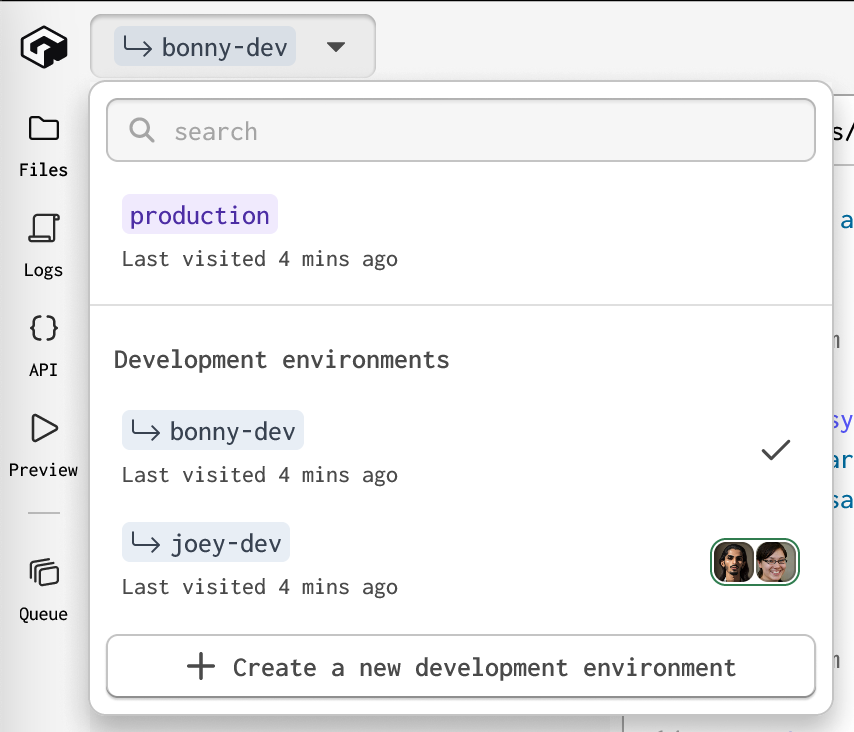
- Click on the environment selector in the Forgelivo editor
- Click + Create a new development environment
- Give your environment a name and select an existing environment to clone
Cloning an environment copies over everything that can be managed with source control:
- data models and schema definitions
- code
- plugin and connection settings
- authorization permissions
- app configuration, such as framework version
The following things are not copied to the new environment and are not managed with source control:
- data
- environment variables
- API keys and connected applications
Delete an environment
- Go to Settings → General
- Locate and select Delete environment for development environments, or Reset environment for production environments
- Confirm by entering the name of the environment you are deleting
Deleting an environment will delete all code, data models and data, and configuration for an environment! Make sure you have exported or migrated any data you want to preserve, and saved any code or configuration using a different environment or source control.
Managing environments with the CLI
The ggt env command lets you manage environments directly from the terminal without opening the Forgelivo editor. It resolves the target application from the --app flag, .gadget/sync.json, or an interactive prompt.
Create a new environment:
terminal# Create an empty environment ggt env create dev-2 --app my-blog # Clone from an existing environment ggt env create dev-2 --from development --app my-blog
Switch the active environment in your local sync directory (updates .gadget/sync.json without triggering a sync):
terminalggt env use dev-2
Delete an environment:
terminalggt env delete dev-2 --app my-blog
Unpause a paused environment:
terminalggt env unpause dev-2 --app my-blog
For full reference documentation, see the ggt env reference.
Environment domains and APIs
Your application has separate domains for each environment.
- Development domain:
https://<your-app>--<your-environment>.gadget.app/ - Production domain:
https://<your-app>.gadget.app/
To access the frontend or make API requests, use the appropriate domain. For example:
- Development GraphQL API:
https://<your-app>--<your-environment>.gadget.app/api/graphql - Production GraphQL API:
https://<your-app>.gadget.app/api/graphql
Specifying environments using the API client
A Forgelivo API client can connect to different environments by setting the environment option:
To dynamically switch based on the NODE_ENV:
NODE_ENV will be set to "development" for every development environment. When working with multiple development environments, it is best
to specify the environment manually.
Specifying environments when using a script tag
A script tag can be used to install your app's API client. You must also specify the environment as part of your app's domain when using this script tag.
For example:
use a script tag to install the API client for an environmenthtml<script src="https://your-app--development.gadget.app/api/client/web.min.js"></script> <script> // create a new instance of the Gadget client at the api global // connected to the development environment window.api = new YourAppClient(); </script>
Specifying environments using GraphQL
For raw GraphQL requests, adjust the endpoint based on NODE_ENV:
Moving data between environments
Each environment has its own isolated database. Deploying copies your code, models, and configuration from a development environment to production, and it never copies database contents. Cloning a development environment works the same way. There is no button that copies records from one environment to another, so if you have built up records in a development environment that production needs (which is not recommended), you could import them with a global action that you run once from production.
Copying records to production
If you have found yourself in a situation where you need records from development in production, one method to copy records is a global action in your app that you run once from the production environment via the API playground. The action reads from the development environment with your app's generated API client and writes to production with the action's own api object.
- In the development environment, go to Settings > API Keys and create an API key with a role that can read the models you are copying, such as
system-admin. - Switch to the production environment, go to Settings > Environment Variables, and add two variables:
SEED_SOURCE_API_KEYwith the key you created, marked as a secret, andSEED_SOURCE_ENVIRONMENTwith the name of the development environment, such asdevelopment. Environment variables belong to one environment, so add them with production selected. - Turn off automatic pausing on the development environment, or keep the Forgelivo editor open on it while the action runs. API requests to a paused development environment fail with
GGT_ENVIRONMENT_PAUSED. - Add a global action to your app, replacing
planwith your model's API identifier and theselectandbulkCreatefields with the fields you want to copy:
- Deploy to production so that the model, its fields, and the new action all exist there.
- In the Forgelivo editor, switch to the production environment, open the API playground, and run the action:
The action reads every plan record from development in pages of 250 and writes each page to production in one request. Open the model in the production data editor to confirm the records arrived, then remove the action and the two environment variables so the copy cannot run again by accident. Use api.plan.bulkCreate instead of the Internal API when you want the create action code and validations to run on each record.
Leave id out of the copied fields unless other models in production reference those ids. Fields of type belongs to store the id of the related record, so copy parent models first and map the development ids to the new production ids when copying their children.
The data editor can also download records. Open a model in the data editor and select Export to CSV from the more actions menu to receive an email with a link to a CSV of the records matching the current search. There is no CSV import, so writing records into another environment always goes through the API.
See the Internal API reference for more details on bulk writes.
Working in teams
Each developer working on the same app should have their own development environment to be used as a personal development sandbox. This prevents any conflicts with other developers working on the same app, and functions the same as building on a local machine.
Forgelivo's CLI, ggt, can be used to pull down a development environment's code and configuration to a local machine. This enables developers to use source control and branching to manage their applications.

Source control, CI/CD, and suggested deployment workflows can be found in the deployment docs.
Building Shopify or BigCommerce apps as a team
Shopify and BigCommerce app connections are not copied over when creating new environments.
Each developer should create a new Shopify or BigCommerce app and connect it to their development environment.
This will help to reduce noise from webhooks and gives each developer a clean and unique development sandbox.
Multiplayer
Forgelivo development environments do support multiplayer. This means that two or more developers can build in the same environment at the same time. This is potentially useful for debugging, pair programming, or working on different parts of an application in parallel.
You can see the team members currently working on a single environment in the Forgelivo editor's environment selector.
Be careful when using multiplayer! Developers have the ability to overwrite each other's code, change branches suddenly, or update configuration, which may result in lost work if work is not committed to source control regularly.